
Spotlight indexing is getting a fresh overhaul in Apple’s latest software, and the company has now published a support document explaining how the process works and how users can help it finish faster. As Apple prepares to roll out iOS 27, iPadOS 27, macOS 27, and other operating systems announced at this year’s WWDC, the guidance focuses on three practical steps that can accelerate the initial indexing process.
What the new Spotlight indexing does
The updated indexing process builds and continuously maintains a searchable catalog of the information stored on your device. That catalog allows Spotlight and the new Siri AI to quickly surface apps, files, messages, photos, contacts, settings, and other content whenever you run a search.
Because the index is stored locally on each device, the process must complete separately on every Apple product you own. Apple began laying the groundwork for this shift earlier with iOS 26.6, an update the company said would optimize the Spotlight index to prepare for iOS 27, effectively moving some of the indexing work ahead of the major release.
Three things that speed up indexing
According to Apple, the initial indexing can take hours or even days depending on how much data is stored on your device, though incremental updates afterward are far faster. The company says indexing completes more quickly when your device meets these conditions:
Your device is not in use. Your device is connected to power. Your device is connected to the internet via Wi-Fi or Ethernet, in case email or other data needs to be downloaded during indexing.
How to check indexing progress
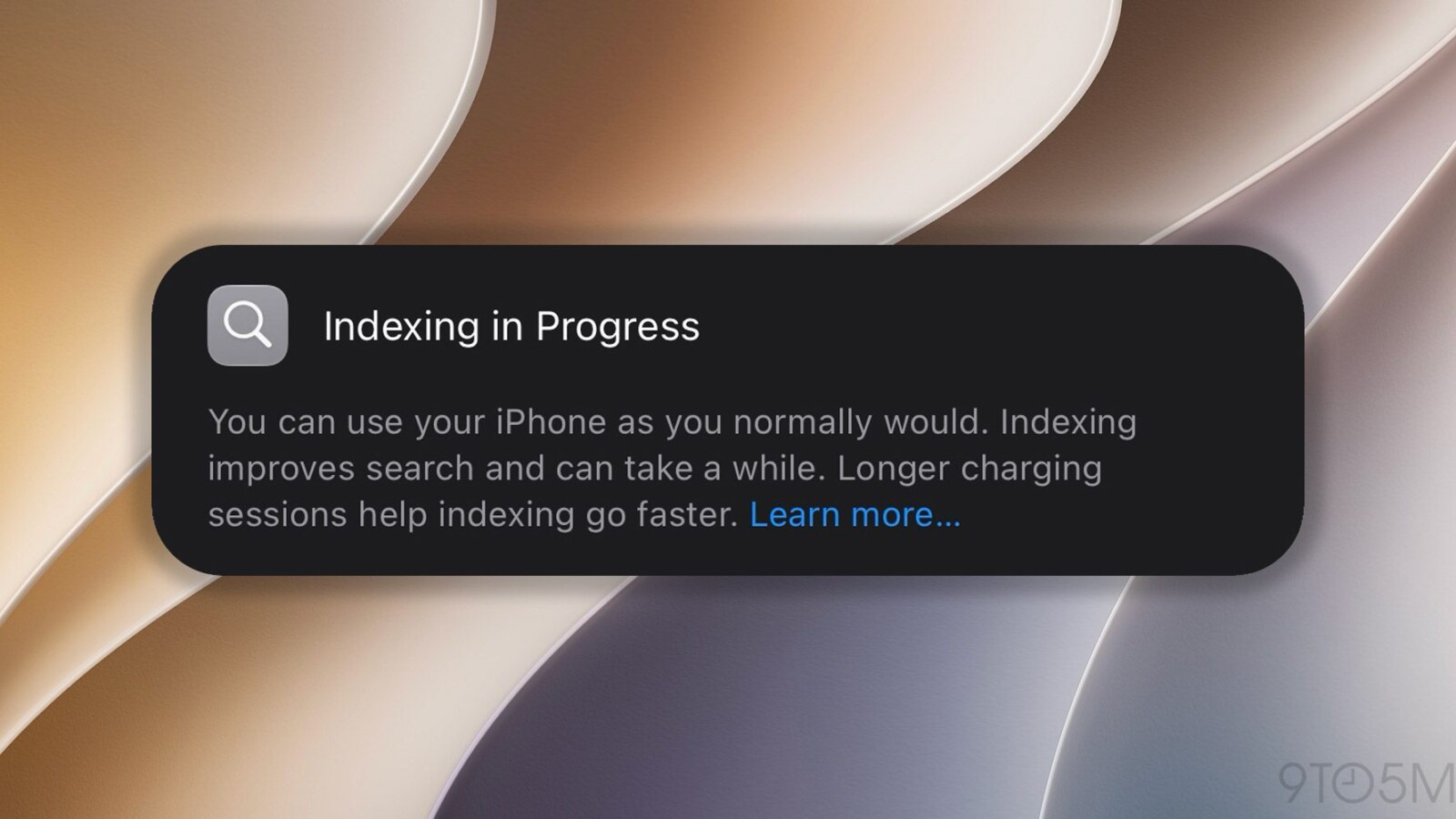
On the Mac, you can monitor progress through an indicator at the top of the Spotlight or Siri window after pressing Command-Space. On iPhone, iPad, and other devices, you may instead see a notification in the Settings app noting that Search and Siri are still optimizing.
Apple also points out that the Mail app can display a separate notification when email indexing has not yet finished. The company’s full support document additionally covers what to do if Spotlight returns unexpected search results.
Source
Image: 9to5mac.com