
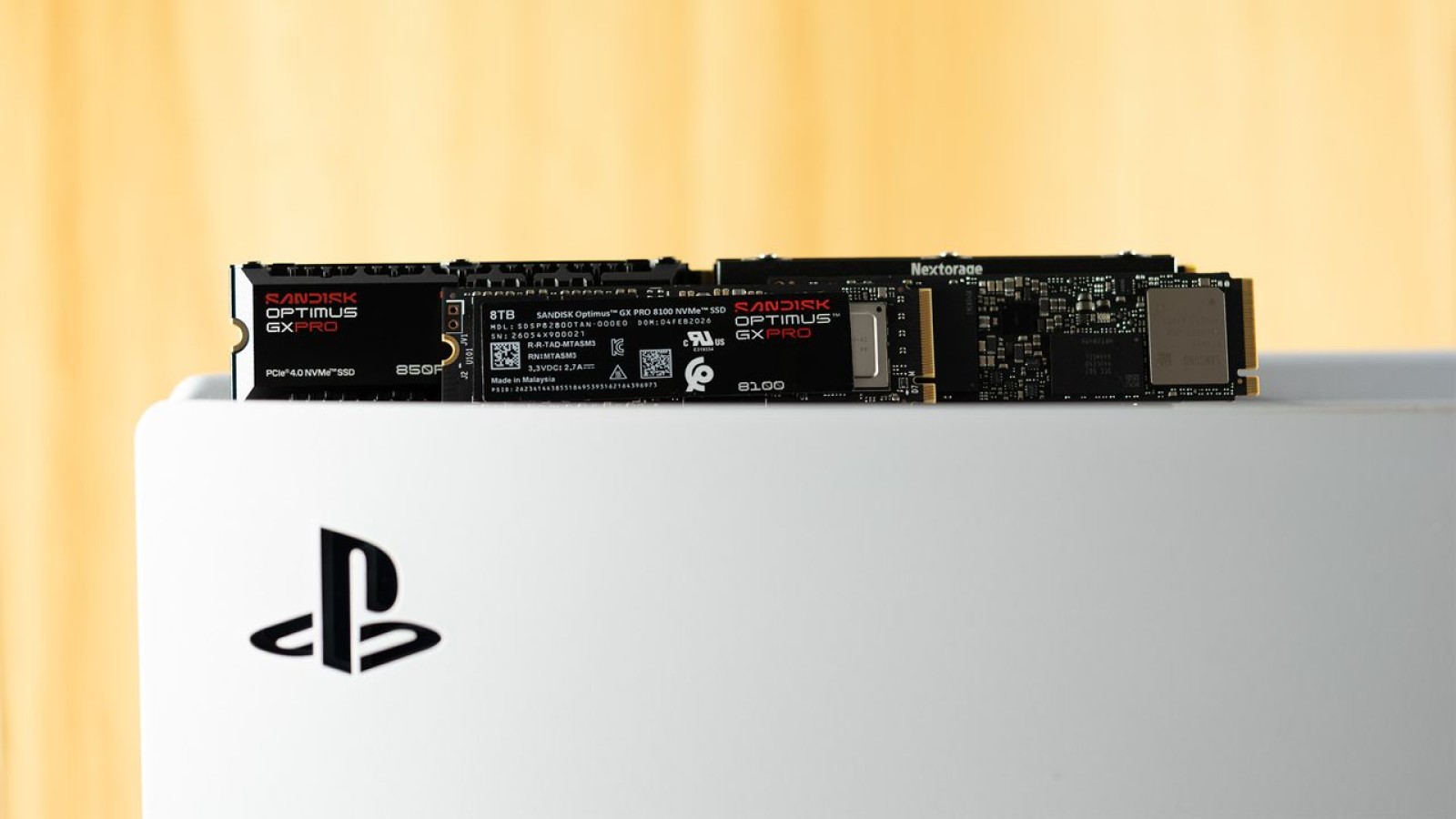
Adding a high-speed M.2 PCIe 4.0 NVMe SSD to your PlayStation 5 has shifted from a nice-to-have upgrade to a practical requirement in 2026. Modern AAA titles keep growing in size and demand, filling the console’s built-in storage quickly. With Sony moving away from physical game discs, having extra fast storage matters even more, since managing a large library on internal storage alone becomes difficult.
Installing a quality drive means you can stop uninstalling games to free up space and avoid redownloading hundreds of gigabytes just to replay an older title. A proper upgrade keeps your growing collection accessible without constant shuffling.
Best of all, adding an M.2 SSD is a safe, warranty-friendly process. As long as you use a compatible drive and avoid causing physical damage during installation, your warranty stays intact. The steps below walk you through the entire process.
What You Need Before You Start
The installation itself requires only a Phillips screwdriver. For the drive, choose a PCIe 4.0 x4 NVMe SSD with a minimum sequential read speed of 5,500 MB/s and either a built-in or aftermarket heatsink.
A few recommended options span different budgets. The WD Black SN850X 2TB is a top pick at EUR 320, delivering sequential read and write speeds up to 7,300 MB/s and 6,600 MB/s. The Samsung 990 Pro 2TB, recently priced at EUR 337 (down from EUR 553), reaches up to 7,450 MB/s reads and 6,900 MB/s writes. For a budget choice, the WD Blue SN5100 offers sequential performance of 7,100 MB/s reads and 6,700 MB/s writes.
Preparing and Opening the Console
Begin by carefully disconnecting both the HDMI and power cables from your PlayStation 5. Remove it from the stand if one is attached, then lay the console horizontally on a flat surface to make the process easier and reduce the risk of accidental damage.
To protect the console from scratches, place an anti-static mat, cardboard, or a sheet of paper underneath it. Avoid soft fabrics such as microfiber cloths or towels, which can generate static electricity when they touch plastic.
Before opening the console, touch a grounded metal object to safely discharge any static electricity from your body. Position the console with the PlayStation logo facing down and the rear ports pointing toward you. Hold the console steady with one hand, then locate the bottom-right corner of the top cover with your other hand. Gently lift the cover upward while sliding it to the left to remove it.
Source
Image: tomshardware.com