
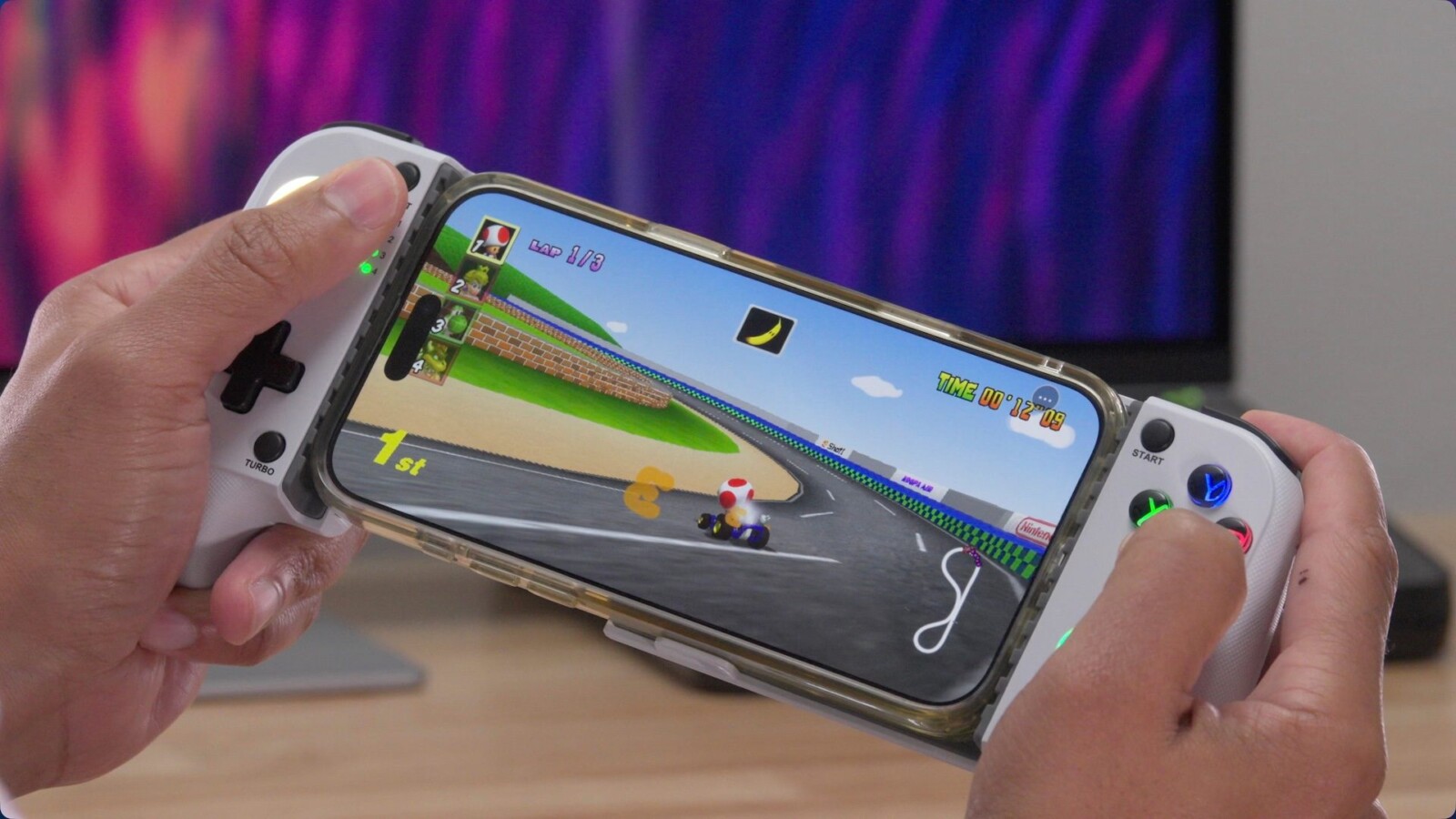
If you want to play Mario Kart 64 on iPhone, there’s now a better option than traditional emulation. While apps like Delta and other N64 emulators have long made it possible to run the classic cart racer on Apple’s mobile hardware, you can now run the game with native Metal rendering, higher frame rates, and HD textures on iPhone.
Paired with a Bluetooth controller such as the Mocagen MC1, this native approach offers the best way to experience Nintendo’s racing classic on your device.
Native rendering versus emulation
The technology behind this method relies on a chain of open-source projects. Libultraship is a library that reimplements the original N64 SDK on modern hardware. Building on that, SpaghettiKart is a PC source port of the decompiled Mario Kart 64 cartridge. Developer Chris Sotraidis then repackaged that project into a native iPhone app called SpaghettiPad, which adds native Metal rendering, Bluetooth controller support, and enhanced visual capabilities.
While getting Mario Kart 64 running through an emulator like Delta is simpler, the native route delivers meaningful advantages. SpaghettiPad supports a widescreen aspect ratio, frame rates up to 120 fps, higher-resolution textures, and improved overall performance, along with numerous settings unavailable through emulation. The app isn’t entirely free of glitches, but it produces noticeably fewer issues than emulated versions.
Luigi Raceway offers a clear example. The track features a jumbotron that mirrors your race activity. On the emulated version, that jumbotron appears as a choppy, low-frame-rate mess, while the native version runs it at a significantly higher, locked-in frame rate. Smaller improvements of this kind appear throughout the game.
Note that this process requires a legally obtained ROM file. If you own the original Mario Kart 64 cartridge, you can dump the required file yourself. Downloading ROMs or the dumping process is not covered here.
Installing iLoader
Although iLoader can sideload an .ipa directly to your iPhone, its main purpose in this setup is to facilitate the installation of SideStore.
Start by downloading iLoader from GitHub. Mount the iloader.dmg file and drag the iLoader app into your Applications folder. Launch iLoader and connect your iPhone to your Mac using USB. If prompted to trust the computer, do so and enter your device passcode.
Next, click refresh under Devices, and your iPhone should appear in the list. Enter your Apple ID email and password, then click Login. This Apple ID does not need to be associated with the account on your iPhone, and you do not need to be registered as an Apple Developer. If you have two-factor authentication enabled, you’ll need to provide the authentication code Apple sends you.
Installing SideStore
SideStore is an AltStore fork that lets you add repositories, install .ipa files, and automatically sign and resign those applications in the background. This background signing keeps apps functioning within Apple’s 7-day developer certificate limit, avoiding the need to manually reinstall SpaghettiPad each week.
Once SideStore is installed and configured, you can use it to
Source
Image: 9to5mac.com