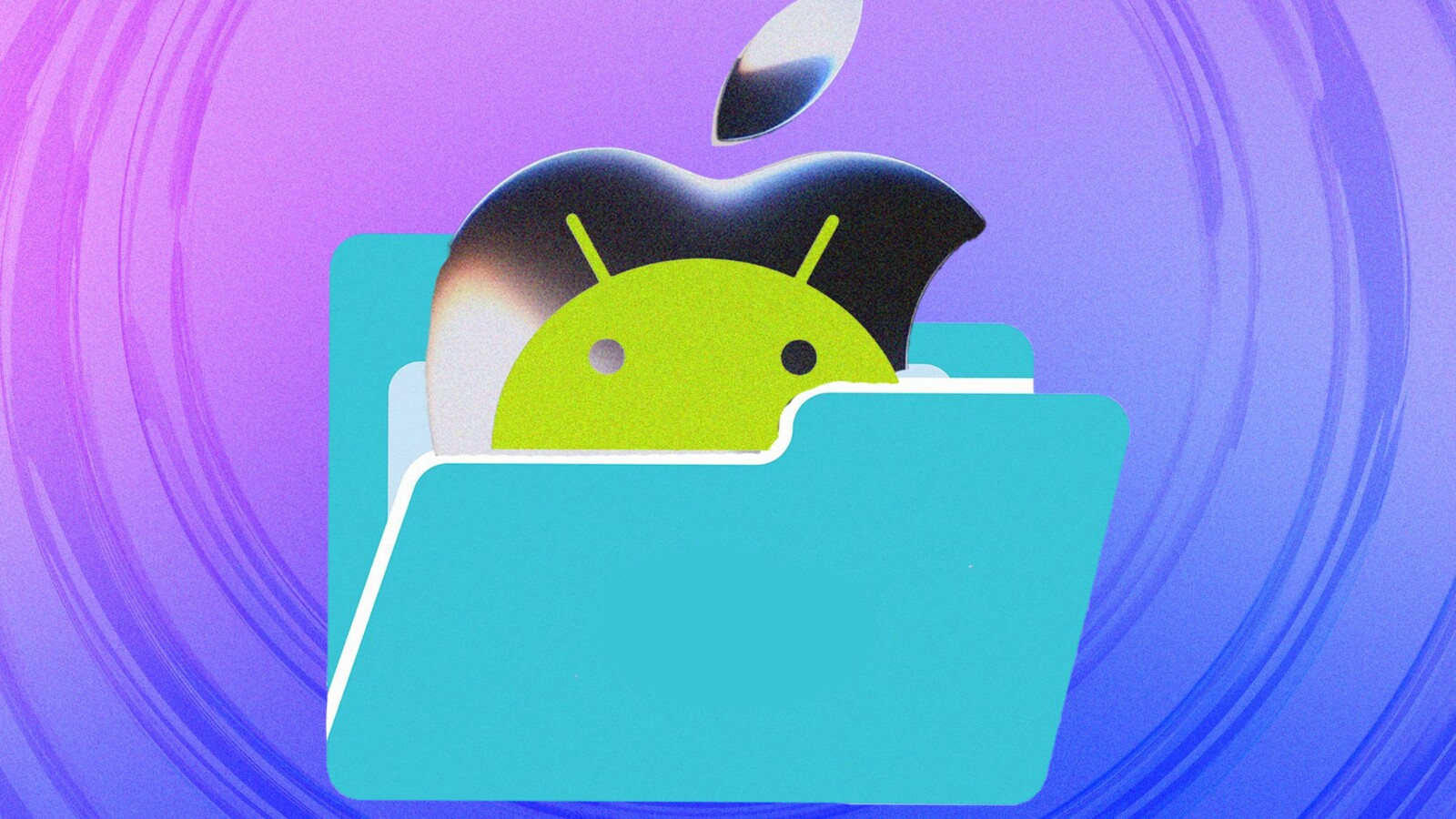
File sharing between Android and iPhone is now simpler than ever, thanks to a series of recent updates Google has rolled out to Android. In many cases, you no longer need to install any additional apps, although third-party tools remain an option if you prefer them.
Whether you want to send a photo, a contact card, a web link, or any other type of content, several methods are available. As is typical with Android, the exact steps can vary depending on your phone’s make and model, but at least one of these approaches should work for you.
Sharing Files With AirDrop
The headline feature is Google’s addition of support for AirDrop, Apple’s device-to-device sharing protocol that was previously closed off to non-Apple hardware. The capability first arrived on newer Pixel phones and has since expanded to other recent devices, including current Pixel and Galaxy handsets. Apple does not appear to have participated in the process, but it has not blocked the functionality either.
Some setup may be required. On Samsung phones, open Settings, then go to Connected devices > Quick Share and turn on Share with Apple devices. Pixel phones have no such toggle and work right away. On the iOS side, open Settings, tap General > AirDrop, and choose Everyone for 10 Minutes.
Once configured, tap the share button in any Android app and select Quick Share from the pop-up panel to reach a nearby iPhone. The iPhone should appear among the available devices; select it to begin the transfer, which must still be accepted on the iPhone.
The process works in reverse as well. Starting from AirDrop on an iPhone, you can send to an Android device as long as it is set to receive from any device. In Settings, tap either Connection preferences (Pixel) or Connected devices (Samsung Galaxy), then choose Quick Share > Who can share with you.
Sharing Files With a QR Code
Google has also introduced a QR-code option for sending content from Android to iOS. It is slightly more cumbersome than AirDrop, but it works on any Android phone.
You again start through Quick Share, which appears whenever you share something in Android, regardless of the app or item. If your device lacks AirDrop support, no iPhone will appear, but you should see a Use QR code option on the right under Share with iPhone and other devices. Tap it to display the QR code.
On the iPhone, AirDrop still needs to be enabled through General > AirDrop > Everyone for 10 Minutes. Point the iPhone camera at the QR code to open a dedicated Google web address, which leads to a simple download page for the shared file or content.
Google states that transferred files remain in the cloud for 24 hours before being securely deleted. They do not count against your Google Drive storage quota. You can share up to 1,000 files in a single session, to a maximum of 20 iPhones, iPads, or Macs, all of which support AirDrop.
Other Ways to Share
Beyond these built-in tools, a wide range of sharing options exists for moving content from Android to iOS, including attaching a file directly to a message or using another transfer app.